

Best Ways For WordPress Login Protection
Have you done anything to protect your WordPress site or is it lying there just like that without any protection and security? Of-course you have that default login/password system but do you honestly think that it is enough? Imagine what will happen if anyone gets access to your admin dashboard.
One word. Mayhem! Now the one and only way to keep your site safe is by
strengthening the security. So here a few good ways to do so as
discussed.
You may like our previous WordPress Collection : Improve WordPress Performance, SEO WordPress plugins, WordPress Ads Banners Plugins, useful wordpress plugins, wordpress facebook plugins.
1. Google Authenticator
It is a plugin that uses the Google Authenticator mobile app to give a two-factoauthenticationlogin to your WordPress site.
Note: Make a point that before you activate Google Authenticator, you have enabled two-factor authentication in your Google account and installed the Google Authenticator app in your Android, iPhone or Blackberry phone.
When the installation and activation process of the plugin is finished, open ‘Users -> Your profile’ and then you will be able to see the Google Authenticator settings.
 There you will see ‘Active’ and a checkbox by its side. Check the
box. Then when you will login the next time, it will ask you to enter
the confidential key. And if If you fail to enter the correct key, it
will not let you login.
There you will see ‘Active’ and a checkbox by its side. Check the
box. Then when you will login the next time, it will ask you to enter
the confidential key. And if If you fail to enter the correct key, it
will not let you login.
2. One Time Password
The name says it all. This is an amazing tool that provides high security to your WordPress site. One Time Password lets you login to your site without putting in your real password. It makes a list of passwords that can be used to login ti the site, but the great past is that those passwords can only be used one time, so even if someone gets to know this password, it will be of no use to him [one time password, remember?]. This toll is very useful is you travel alot and login to your site using a cybercafe.
 When its installation and activation process is finished, go to the
One Time Password section to create your password list. Then enter a
passphrase and click the “Generate” button.
When its installation and activation process is finished, go to the
One Time Password section to create your password list. Then enter a
passphrase and click the “Generate” button.
It depends on you if you want to get a print of all the passwords and carry them with you.
When you want to login, it will show you a sequence number and all you need to do is to match the sequence number with the password list and enter the password
 When you need to login, it will show a sequence number. You just have
to match the sequence number with your password list and enter the
password accordingly.
When you need to login, it will show a sequence number. You just have
to match the sequence number with your password list and enter the
password accordingly.
3. WP Login Security
This amazing tool works through the IP address. It demands admins to register or whitelist their IP address. Now when the admin logins, it will its IP address. And if the IP doesn’t matches the one in the list, then it will send an email to the admin with a link that has a one-time key.
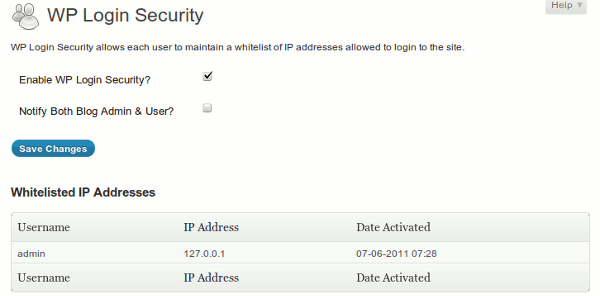 The plus point of this plugin is that very little or almost no
configuration is needed. All you are required to do is to just activate
it and Voila!
The plus point of this plugin is that very little or almost no
configuration is needed. All you are required to do is to just activate
it and Voila!
4. Login Lockdown
Login Lockdown is a very useful plugin that records the IP address and timestamp of every unsuccessful login attempt. If the failed attempts continue within a short period of time from the same IP range, and the number of maximum attempts is reached then the login function would be disabled for all login attempts from that range.
Source:smashinghub.com
You may like our previous WordPress Collection : Improve WordPress Performance, SEO WordPress plugins, WordPress Ads Banners Plugins, useful wordpress plugins, wordpress facebook plugins.
It is a plugin that uses the Google Authenticator mobile app to give a two-factoauthenticationlogin to your WordPress site.
Note: Make a point that before you activate Google Authenticator, you have enabled two-factor authentication in your Google account and installed the Google Authenticator app in your Android, iPhone or Blackberry phone.
When the installation and activation process of the plugin is finished, open ‘Users -> Your profile’ and then you will be able to see the Google Authenticator settings.
There you will see ‘Active’ and a checkbox by its side. Check the
box. Then when you will login the next time, it will ask you to enter
the confidential key. And if If you fail to enter the correct key, it
will not let you login.2. One Time Password
The name says it all. This is an amazing tool that provides high security to your WordPress site. One Time Password lets you login to your site without putting in your real password. It makes a list of passwords that can be used to login ti the site, but the great past is that those passwords can only be used one time, so even if someone gets to know this password, it will be of no use to him [one time password, remember?]. This toll is very useful is you travel alot and login to your site using a cybercafe.
When its installation and activation process is finished, go to the
One Time Password section to create your password list. Then enter a
passphrase and click the “Generate” button.It depends on you if you want to get a print of all the passwords and carry them with you.
When you want to login, it will show you a sequence number and all you need to do is to match the sequence number with the password list and enter the password
When you need to login, it will show a sequence number. You just have
to match the sequence number with your password list and enter the
password accordingly.3. WP Login Security
This amazing tool works through the IP address. It demands admins to register or whitelist their IP address. Now when the admin logins, it will its IP address. And if the IP doesn’t matches the one in the list, then it will send an email to the admin with a link that has a one-time key.
The plus point of this plugin is that very little or almost no
configuration is needed. All you are required to do is to just activate
it and Voila!4. Login Lockdown
Login Lockdown is a very useful plugin that records the IP address and timestamp of every unsuccessful login attempt. If the failed attempts continue within a short period of time from the same IP range, and the number of maximum attempts is reached then the login function would be disabled for all login attempts from that range.
Source:smashinghub.com
Categories:
Wordpress


 Posts
Posts


0 comments:
Post a Comment